Settings Guide
Complete reference for all Guardian Eye configuration options with visual examples.
Main Window
The main window displays live camera feeds with motion detection indicators. You can view multiple cameras simultaneously in a grid layout.
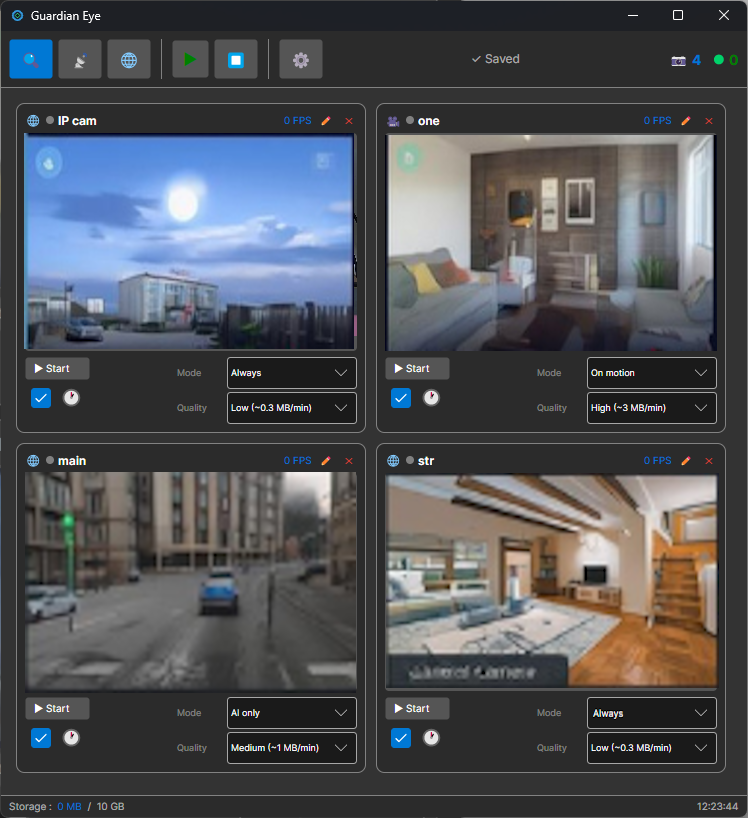
📹 Live View
Real-time video from all connected cameras with low latency.
🎯 Motion Indicator
Visual feedback when motion is detected on any camera.
⚙️ Quick Settings
Access settings directly from the toolbar.
🤖 AI Detection
YOLO v8 neural network detects people, vehicles, and animals.
🔴 Recording
Continuous or motion-triggered recording with flexible formats.
📊 Smart Storage
Automatic rotation and cleanup to manage disk space.
🔊 Audio Analytics
Detect glass breaking, gunshots, screams and other sounds.
🛡️ Tamper Detection
Alerts when camera is covered, defocused, or moved.
🔔 Notifications
Configurable alerts with cooldown and severity filters.
General Settings
Appearance Settings
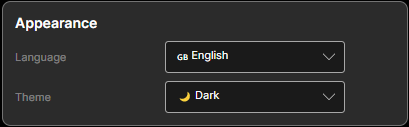
🎨 Theme
Choose your preferred color scheme.
| System | Follows your OS theme (light/dark) |
| Light | Bright interface for daytime use |
| Dark | Dark interface, easier on eyes at night |
🌐 Language
Select interface language.
Recording Settings
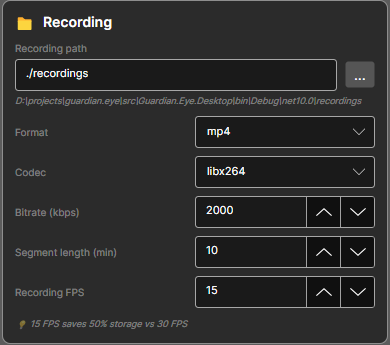
📁 Output Path
Where recordings are saved.
./recordings 💡 Use SSD for best performance with multiple cameras.
🎬 Format & Codec
| Format: | mp4, mkv, avi |
| Codec: | libx264 (H.264) recommended |
| Bitrate: | 2000 kbps (720p) |
⏱️ Segment Duration
Split recordings into files of this length.
| Range: | 1 - 60 minutes |
| Default: | 10 minutes |
💡 Shorter = easier to find events, more files to manage.
🎞️ Recording FPS
Frames per second for saved video.
| Default: | 15 FPS |
| Tip: | 15 FPS saves 50% storage vs 30 FPS |
Storage Rotation
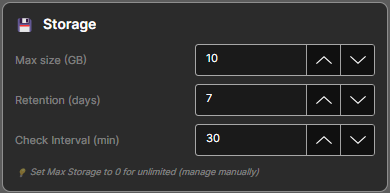
💾 Max Storage Size
Maximum disk space for recordings.
| Default: | 10,240 MB (10 GB) |
| Behavior: | Oldest files deleted when limit reached |
💡 Set to 0 for unlimited (manage manually).
📅 Max Age (Days)
Delete recordings older than this.
| Default: | 7 days |
| Free plan: | 7 days max |
| Home plan: | 30 days |
| Pro plan: | Unlimited |
🔄 Check Interval
How often to check storage limits.
| Default: | 30 minutes |
💡 Lower = more responsive cleanup, slightly more CPU.
📊 Storage Calculator
Estimate how much storage you'll need:
Motion Detection Settings
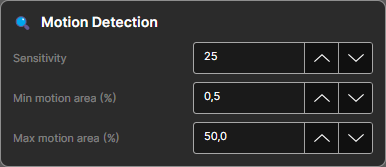
🎚️ Sensitivity
How sensitive the detector is to pixel changes.
| Range: | 0 - 255 |
| Default: | 25 |
| Tip: | Lower = more sensitive, may cause false alarms |
📐 Min/Max Motion Area
Percentage of frame that must change to trigger.
| Min Area: | 0.5% — filters noise |
| Max Area: | 50% — filters light changes |
💡 If whole image changes (>50%), it's probably lighting, not motion.
⏱️ Cooldown
Wait time after detection before next trigger.
| Range: | 0 - 3600 seconds |
| Default: | 5 seconds |
💡 Prevents spam notifications during continuous motion.
Detection Optimization
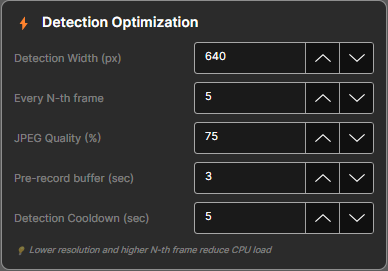
⚙️ Processing Mode
Hardware acceleration method.
| CPU | Universal, slower |
| GPU | Requires NVIDIA GPU, 10x faster |
🎬 Frame Skip
Analyze every Nth frame to save CPU.
| Range: | 1 - 10 frames |
| Default: | 3 frames |
💡 Skip 3 = analyze every 3rd frame, saves 66% CPU
📐 Detection Resolution
Downscale frames before analysis.
| 100% | Best accuracy, slowest |
| 50% | Balanced |
| 25% | Fastest, lower accuracy |
Tamper Detection
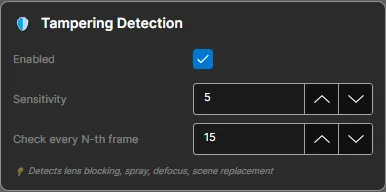
Tamper Protection
Automatically detect when someone tries to interfere with camera operation.
Sends immediate alerts when tampering is detected. Works independently from motion detection.
Detectable Tamper Events
- Camera Covered
Detects when lens is blocked or covered
- Camera Defocus
Detects when lens is deliberately defocused
- Scene Change
Detects when camera is moved or redirected
Video Analytics
Object Detection (AI)
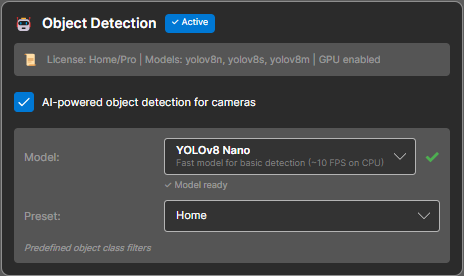
🤖 AI Engine
Powered by YOLO v8 neural network for accurate object recognition.
YOLO v8 👥 Detectable Objects
80+ object classes including:
🎚️ Confidence Threshold
Minimum confidence score to trigger detection.
| Range: | 0 - 100% |
| Default: | 50% |
💡 Higher = fewer false positives, may miss some objects
Advanced Parameters
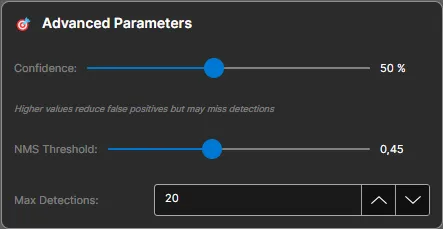
Expert Settings
Fine-tune performance parameters for advanced users.
| Buffer Size | Frame buffer size for smoother playback (higher = more RAM) |
| Thread Count | Number of CPU threads for detection processing |
| GPU Memory Limit | Maximum VRAM allocation for AI models |
Warning: Incorrect settings may cause instability. Only modify if you understand the implications.
Visualization
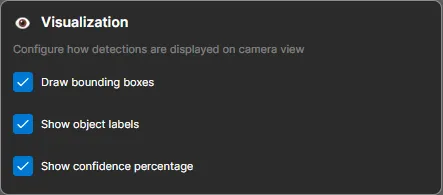
Display Options
Configure how detection results are displayed on the live view.
- Show bounding boxes around detected objects
- Show object type labels
- Show confidence percentage
- Show motion detection zones
Disable visualization overlays to improve performance on low-end hardware.
Notification Filter
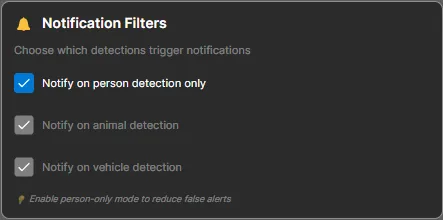
Filter Settings
Control when and how you receive notifications to avoid alert fatigue.
| Cooldown Period | Minimum time between notifications for same camera |
| Quiet Hours | Suppress non-critical notifications during specified hours |
| Severity Filter | Only notify for events above selected severity level |
Set cooldown to 5+ minutes to avoid notification spam during continuous activity.
Audio Analytics
Audio Analytics
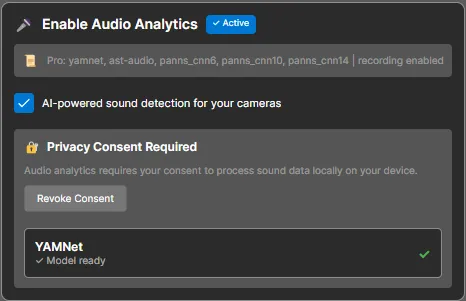
Sound Detection
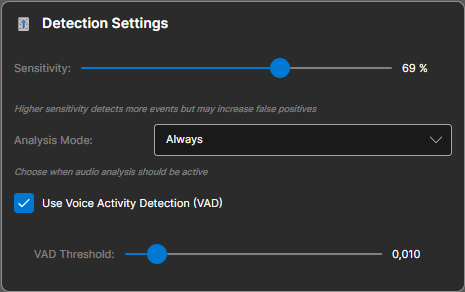
AI-powered audio analysis detects specific sounds like glass breaking, gunshots, or screams.
Requires camera with microphone. Works alongside video detection for comprehensive security.
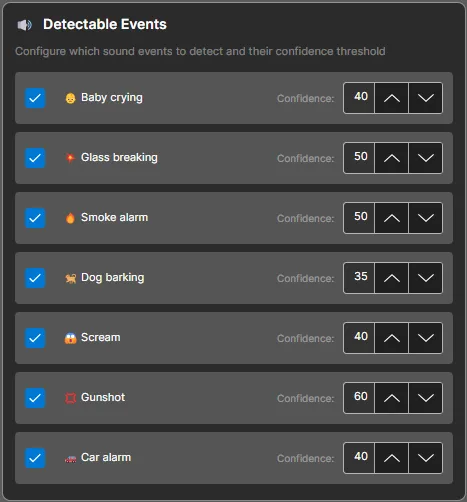
Detectable Audio Events
- Glass Breaking
Detects sound of window or glass door breaking
- Gunshot
Detects firearm discharge sounds
- Scream/Distress
Detects human screams or distress calls
Detection Settings
🎯 Enable Detection
Turn motion/object detection on or off for this camera.
💡 Disable when camera points at busy street to save CPU.
⚡ Detection Mode
Choose detection algorithm.
| Motion Only | Fast pixel change detection |
| AI Only | YOLO v8 object detection |
| Combined | Motion triggers AI analysis |
Detectable Events
Event Types
Configure which events trigger recordings and notifications.
- Motion Detection Events
- Object Detection (Person, Vehicle, Animal)
- Audio Events (Glass, Gunshot, Scream)
- Tamper Events (Covered, Defocus, Scene Change)
Enable only events relevant to your use case to reduce false positives and storage usage.